Tracking Progress
Monitor signature totals, certification rates, and goal progress from the dashboard.
The petitioning hub dashboard gives you an at-a-glance view of how your signature collection effort is going.
Dashboard Stats
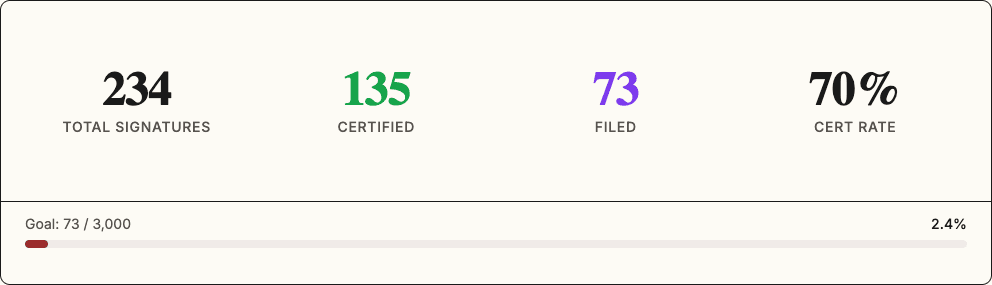
At the top of the petitioning hub, the stats bar shows four key numbers:
| Stat | What it measures |
|---|---|
| Total signatures | Sum of all signatures across all uploaded sheets. |
| Certified | Signatures from sheets that have been certified by their city hall. |
| Filed | Certified signatures that have been filed with the state. |
| Cert rate | The percentage of total signatures that have been certified. |
These numbers update automatically as sheets move through the lifecycle.
Setting a Signature Goal
To track progress toward a target:
- Open Settings for your space.
- Go to the Petitioning tab.
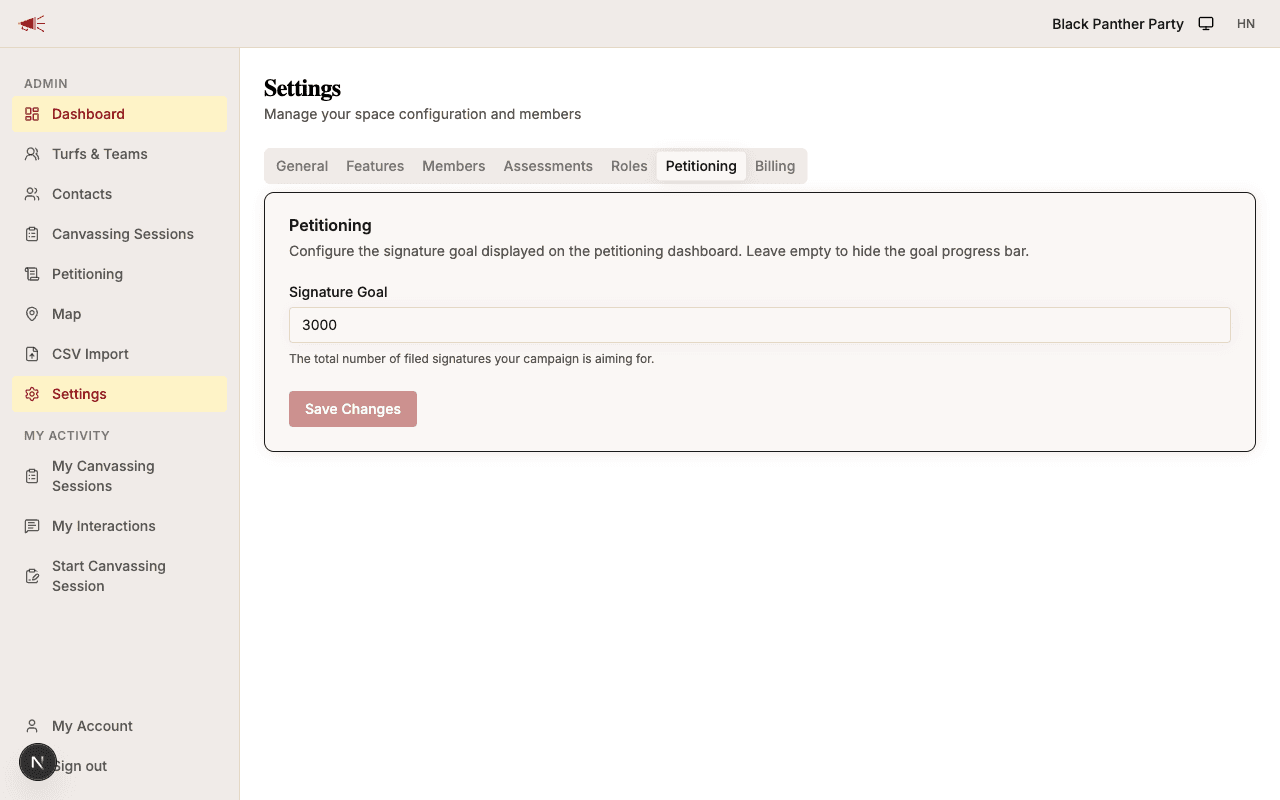 3. Enter a Signature goal — the total number of filed signatures your campaign is aiming for (between 1 and 1,000,000).
4. Click Save.
3. Enter a Signature goal — the total number of filed signatures your campaign is aiming for (between 1 and 1,000,000).
4. Click Save.
When a goal is set, a progress bar appears in the dashboard stats showing how many filed signatures you have relative to the goal (e.g., "77 / 3,000").
To remove the progress bar, clear the goal field and save.
Filtering and Searching Sheets
The Sheets tab offers tools to drill into your data:
- Search — Type a city name or uploader's name to filter the table.
- Status filter — Click a status to show only sheets in that stage (Collected, Certified, or Filed).
These filters help you quickly find sheets that need attention — for example, filtering to "Collected" to see which sheets haven't been certified yet.