Conducting a Session
Step-by-step guide for volunteers to start a canvassing session, record door knocks, and end their shift.
This guide walks you through a complete canvassing session — from starting a new session to recording each door knock and wrapping up at the end of your shift.
Starting a Session
Open the app on your phone. You'll see the outreach home screen with two options — canvassing and tabling.
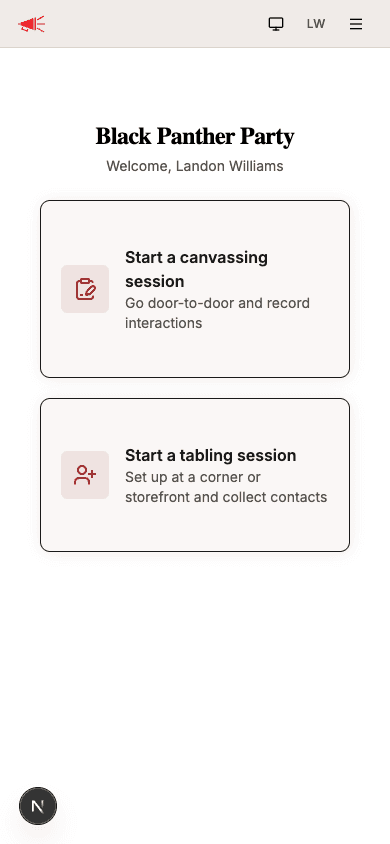
Tap Start a canvassing session to begin.
Select a Team (Optional)
If you belong to one or more teams, you'll be asked to pick which team this session is for. Tap a team to select it, then tap Next. If you don't want to associate the session with a team, tap Skip — no team.
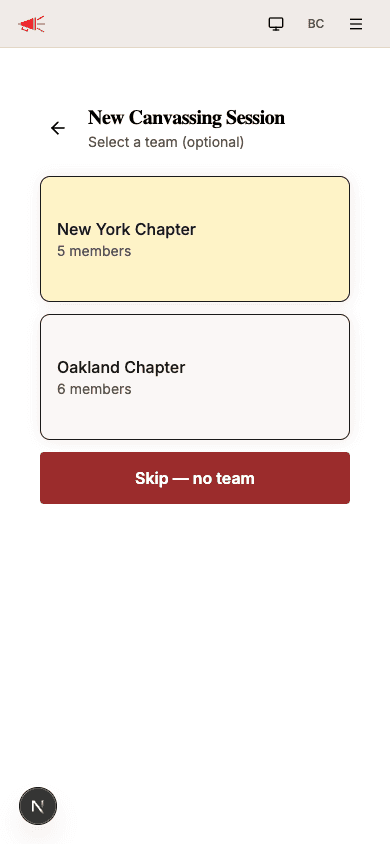
If you only belong to one team, this step is skipped automatically.
Add Canvassers (Optional)
If other volunteers are canvassing with you, you can add them to the session. Enter their email address or phone number and tap Look Up to find them. You can add multiple canvassers.
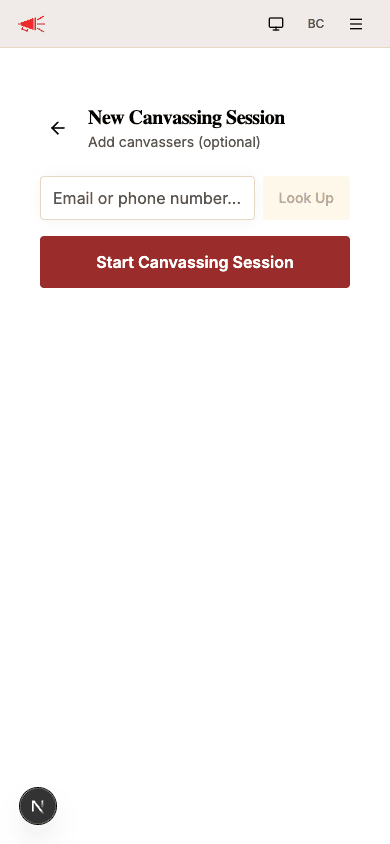
When you're ready, tap Start Canvassing Session. You'll be taken to the active session screen where you can start recording interactions.
Recording Interactions
The active session screen is where you'll spend most of your time. The header shows your team name, the number of participants, and how many interactions have been recorded so far.
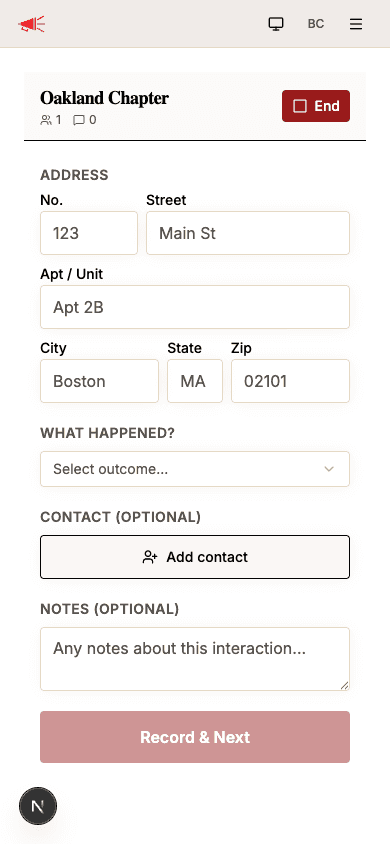
For each door you knock on, fill out the form and tap Record & Next.
Address
Enter the address of the door you're knocking on:
| Field | Required | Description |
|---|---|---|
| No. | Yes | The street number (e.g., "42"). |
| Street | Yes | The street name (e.g., "Elm St"). |
| Apt / Unit | No | Apartment or unit number, if applicable. |
| City | Yes | The city name. |
| State | Yes | The two-letter state abbreviation. |
| Zip | Yes | The ZIP code. |
Tip: After you record an interaction, the street name, city, state, and zip carry over to the next form — only the street number and unit clear. This saves you time when you're working down the same street.
What Happened?
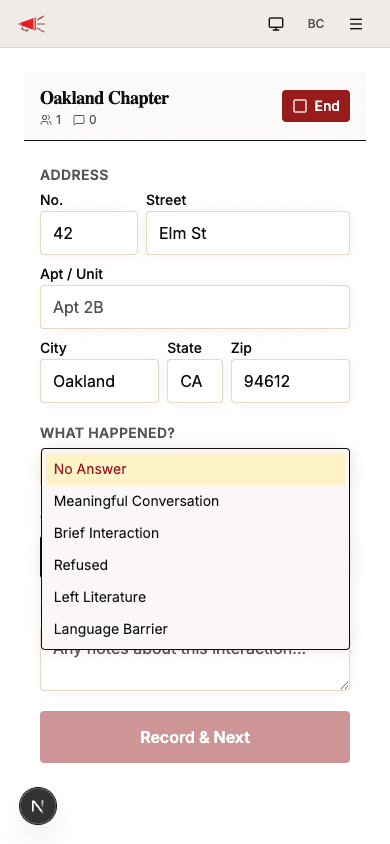
Tap the What happened? dropdown to select the outcome of your door knock.
| Outcome | When to use |
|---|---|
| No Answer | Nobody came to the door. |
| Meaningful Conversation | You had a substantive conversation with someone. |
| Brief Interaction | You spoke briefly but didn't have a full conversation. |
| Refused | The person declined to engage. |
| Left Literature | Nobody answered but you left materials at the door. |
| Language Barrier | You couldn't communicate due to a language difference. |
Assessment and Language (Conversations Only)
When you select Meaningful Conversation or Brief Interaction, two additional fields appear:
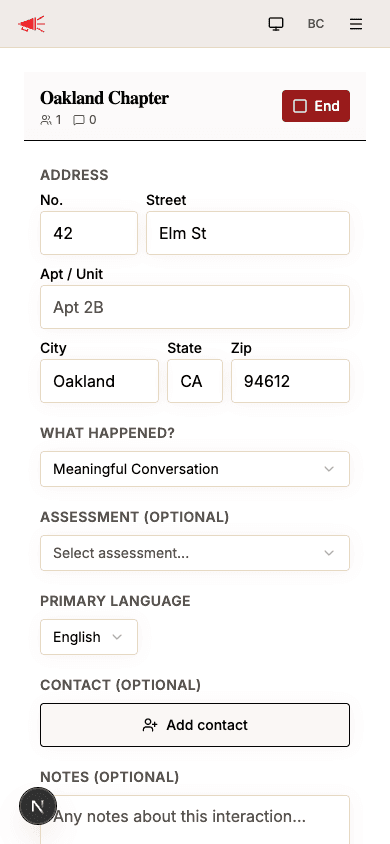
- Assessment — An optional tag to categorize the conversation (e.g., Supporter, Persuadable, Opponent). The available options are defined by your organization's admins.
- Primary Language — The language you spoke with the person. Defaults to English.
Adding a Contact (Optional)
If the person you spoke with shares their information, tap Add contact to save it.
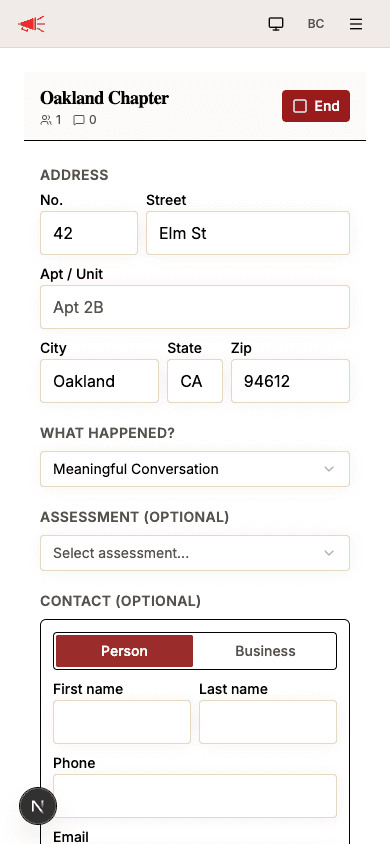
The contact form includes:
| Field | Description |
|---|---|
| Person / Business | Toggle between a person and a business. |
| First name / Last name | The contact's name (or business name). |
| Phone | Their phone number. |
| Their email address. | |
| Primary language | The contact's preferred language. |
You don't need to fill in every field — just capture whatever the person is comfortable sharing. Tap Cancel if you change your mind.
Notes (Optional)
Use the notes field to jot down anything worth remembering about the interaction — for example, "Very interested in volunteering" or "Asked about our position on housing." Notes can be up to 2,000 characters.
Submitting
Once you've filled in at least the address and outcome, tap Record & Next. The interaction is saved, the form resets (with the address partially carried over), and you're ready for the next door.
Resuming a Session
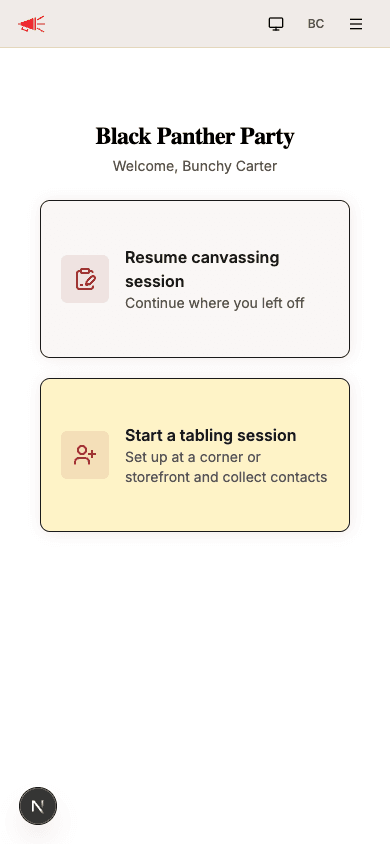
If you leave the app and come back while your session is still active, the outreach home screen will show Resume canvassing session on the canvassing card instead of "Start a canvassing session." Tap it to pick up right where you left off.
Ending a Session
When you're done canvassing for the day, tap the red End button in the session header. A confirmation dialog will appear.
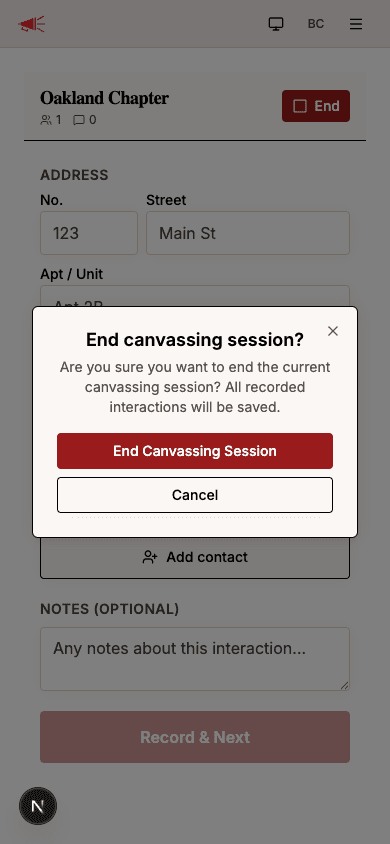
Tap End Canvassing Session to confirm. All your recorded interactions are saved — nothing is lost. You'll be taken back to the outreach home screen.