Contacts
View, create, and edit contacts encountered during canvassing.
The Contacts page shows everyone your organization has interacted with during canvassing. As a volunteer captain, you can see all contacts across the organization, add new ones, and update their information.
Viewing Contacts
Open Contacts from the sidebar. You'll see a list of all contacts with their key information.
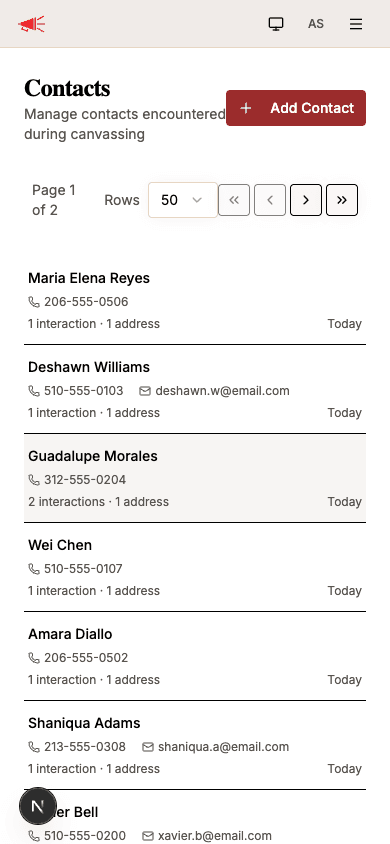
Each contact card shows:
- Name — the contact's full name (and assessment badge, if one has been assigned)
- Phone and/or email — contact information, if provided
- Interaction and address counts — how many times the contact has been reached and at how many addresses
- Date — when the contact was created
The list is paginated — use the navigation buttons at the top to move between pages, and adjust the Rows dropdown to control how many contacts appear per page.
Contact Detail
Tap a contact to view their full profile. The detail page has three sections.
Contact Info
The top card shows the contact's information — phone, email, primary language, notes, and creation date. Tap the Edit button (pencil icon) to update any of these fields.
When editing, you can also:
- Change the assessment (e.g., Supportive, Undecided, Opposed)
- Update the primary language
- Add or edit notes (up to 2,000 characters)
- Switch between Person and Business contact types
Address
Below the contact info, you'll see any addresses associated with this contact. Each address shows the full street address and a DNC (Do Not Contact) toggle. Flip this toggle to mark an address as do-not-contact, which prevents future canvassing at that location.
Interaction History
The bottom section shows every interaction recorded with this contact, sorted by most recent first.
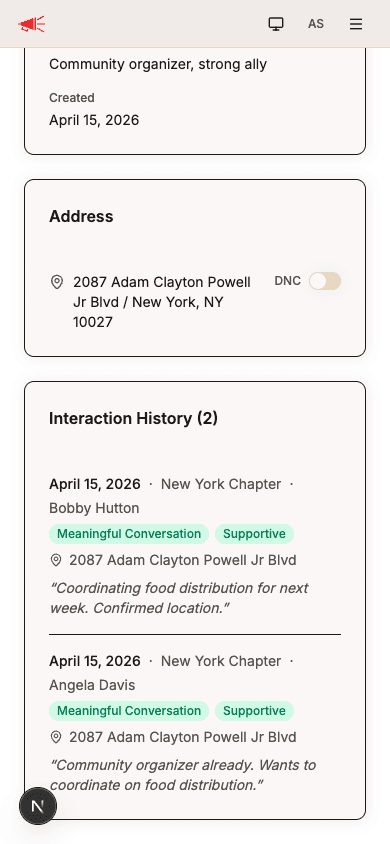
Each interaction shows:
- Date, team, and canvasser — when it happened and who conducted it
- Outcome badge — color-coded (e.g., Meaningful Conversation, Refused, No Answer)
- Assessment badge — if an assessment was recorded
- Address — where the interaction took place
- Notes — any notes the canvasser left, shown in italics
Adding a Contact
To create a new contact, tap Add Contact at the top of the contacts list.
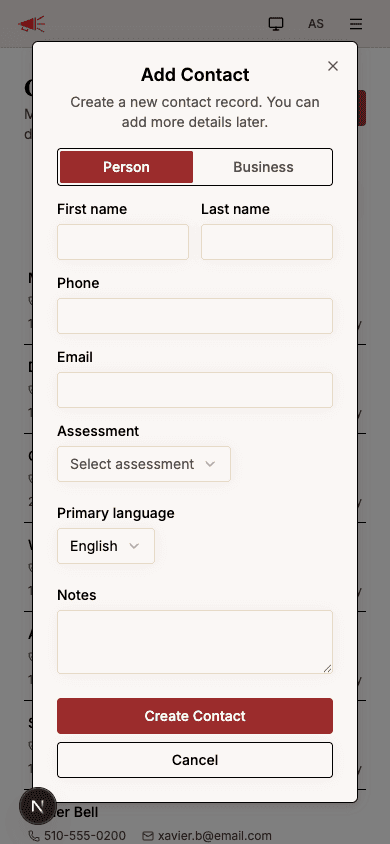
Fill in the contact's information:
| Field | Required | Description |
|---|---|---|
| Person / Business | Yes | Toggle between a person and a business contact. |
| First name / Last name | At least one | The contact's name (or business name). |
| Phone | No | Their phone number. |
| No | Their email address. | |
| Assessment | No | An initial assessment tag. |
| Primary language | No | Defaults to English. |
| Notes | No | Any additional context (up to 2,000 characters). |
Tap Create Contact to save. The contact will appear in the contacts list.